What Does “Keep Organisational Data Separate From Personal Data” Mean in Real Life?
“Keep organisational data separate from personal data” can sound like a simple instruction: put work files in one place and personal files in another. In practice, separation is about more than folders. It means using the devices, apps, accounts and routines your employer has approved so that work information does not drift into personal spaces—or become visible to other people using your device.
That matters especially in healthcare. A patient’s name in a message preview, a clinical photograph saved to a personal camera roll, or a work document backed up to a consumer cloud account can create a data-protection and confidentiality problem even if nobody intended to share it.
The starting point is always your employer’s bring-your-own-device (BYOD) and information-security policy. The Information Commissioner’s Office (ICO) advises organisations to protect personal information when people work remotely, including by setting clear expectations and using appropriate security measures. This post turns that principle into everyday examples. It does not replace your local policy, clinical-record rules or incident-reporting process.
Start With Your Employer’s BYOD Policy
Before installing a work app, forwarding a message or saving a document, check what your organisation allows. A personal device may be allowed for some work activities, such as accessing a managed email app, but prohibited for others, such as storing patient records or taking clinical photographs.
Find out what your policy says about:

- Whether personal phones, tablets or computers may be used for work at all.
- Which work apps and services are approved, and whether access requires a managed profile or app.
- Whether patient information may be viewed, downloaded, printed or stored on a personal device.
- Required screen-lock, password, encryption and software-update settings.
- What happens if a device is lost, shared with family, replaced or no longer used for work.
- How to report a suspected disclosure, misdirected message or missing device.
Do not assume that a device is approved just because you can sign in to a work service on it. Access may be technically possible without being permitted. If the policy is unclear, ask your manager, IT service desk, information-governance team or data-protection officer before using the device for organisational data.
What Counts as Organisational Data?
Organisational data includes more than formal documents. It can include information created, received or used for your job. In a healthcare setting, it may include patient details, appointment information, clinical notes, staff contact details, rota information, internal emails, meeting https://smoothdecorator.com/how-do-i-stop-work-apps-from-interrupting-my-sleep-after-a-late-shift/ papers, incident reports, photographs, audio recordings and screenshots.
Some of this information is personal data under UK data-protection law. Patient health information is especially sensitive. Work information that is not about an identifiable person—such as a draft procedure or a team rota template—may still be confidential or commercially sensitive. Follow your employer’s rules for both.
Approved Systems Only for Patient and Organisational Data
One of the clearest personal device boundaries is this: use approved systems only for patient and organisational information. An approved system is one your employer has selected and configured for the relevant work, with access controls and security arrangements that meet its requirements.
Depending on your organisation, that might mean a clinical record system, managed email, an approved secure messaging platform, or an employer-managed file service. The exact tools vary. Do not substitute a familiar personal app just because it is quicker.
Everyday situation Safer boundary You need to send a patient-related message. Use the communication route approved by your employer. Check the recipient and the minimum information needed before sending. You need to work on a document away from the hospital. Open it through the approved work service. Do not copy it to a personal drive or consumer cloud account. You want to remember a clinical detail for later. Record it in the approved clinical workflow. Do not put identifiable details in a personal notes app, text message or calendar. You cannot access the approved system. Use your organisation’s downtime or escalation process. Do not switch to personal email or an unapproved messaging app as a workaround.
Folders alone do not provide security. A folder labelled “Work” may still be backed up to a personal cloud account, searchable by other apps or accessible to someone who shares the device. Separation depends on the whole setup: account, app, storage location, access controls and backup behavior.
Watch Where Files Go Automatically
Phones and computers often save or sync information without making the destination obvious. Before saving a work file, check the account and location shown in the app. Avoid enabling personal photo, file or device backups for work material unless your employer explicitly approves the arrangement.
Also check what happens when you share, print, copy or export a file. A share menu may offer personal messaging apps, nearby devices or consumer storage alongside approved work options. Pause and confirm the destination before tapping. This is an easy mistake to make when moving quickly between apps.
Separate Entertainment From Clinical Work
Using one device for both work and personal life can be convenient, but it increases the chance of mixing data or interrupting a clinical task. The goal is not to make the device magically safe by putting work and entertainment in different folders. It is to create clear, repeatable boundaries that match your employer’s policy.
hide notification content androidPractical examples include:
- Use a dedicated, employer-managed work app or profile if your organisation provides one.
- Keep patient information inside the approved app rather than copying it into personal messaging, notes or photo apps.
- Do not use screenshots as a shortcut for saving or sharing clinical information unless a specific approved process allows it.
- Do not let another person use an open work session, even briefly. Sign out or lock the device before handing it over.
- Keep work notifications and entertainment notifications distinct where your settings and employer-approved tools allow.
- Use the organisation’s process to remove work access when your role changes or you stop using the device for work.
If your employer allows work and personal use on one device, ask how separation is implemented. Some organisations use a managed work profile or mobile-device-management controls. Those controls can help keep work apps and data apart, but they do not remove the need to follow policy or check where information is being saved and shared.
Lock-Screen Previews and Notification Privacy
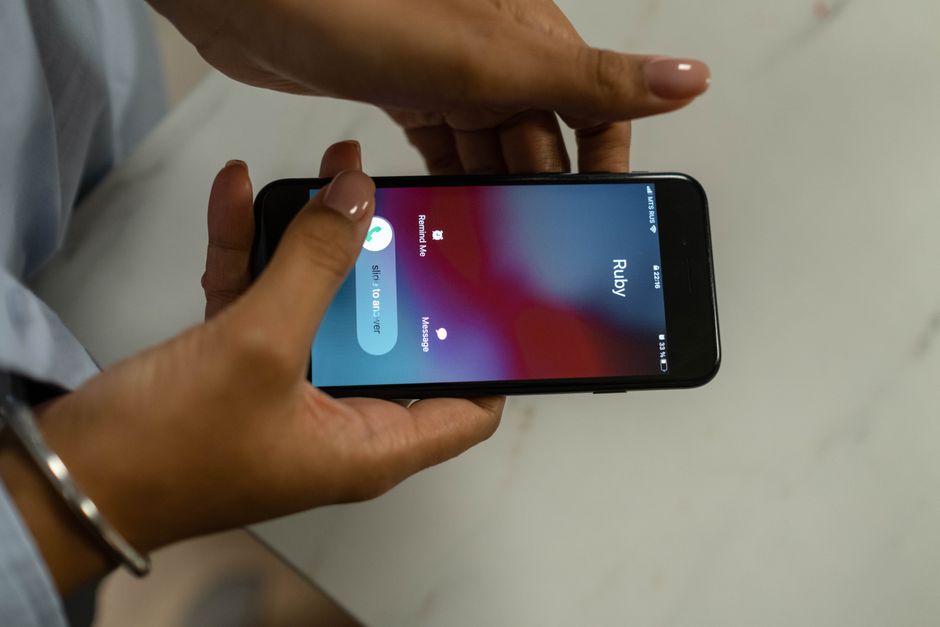
A lock screen can reveal information even when the device itself is locked. A message preview might show a patient’s name, a clinic location, an appointment time or the first line of a clinical message. Someone nearby may see it on a desk, in a waiting area or on public transport.
Review notification settings on the actual lock screen—not just in the settings menu. Send a test message from an approved account, lock the device and check what appears. If the preview exposes work information, change the setting or follow your organisation’s instructions for the managed app.
- Open the device’s notification or lock-screen settings.
- Find the settings for the approved work apps you use.
- Choose an option that hides message content when the device is locked, if permitted by your employer.
- Lock the phone and test with a non-sensitive test message or an approved test process.
- Check the result from the normal viewing angle and, if relevant, on any paired watch or connected device.
Do not test by sending real patient details. If your employer manages these settings, ask IT or your information-governance team what you can change. A setting that hides previews on the phone may not automatically hide them on a smartwatch, car display or other linked device.
Examples of Data Separation in Real Life
Checking a rota at home
Open the rota through the approved work account or service. Do not download it into a personal calendar or send it to a family member for printing. Staff contact details and shift patterns may be sensitive even when the rota does not contain patient information.
Receiving a work message during a personal activity
Read and respond through the approved work channel. If the message requires a clinical action, follow the relevant documentation and escalation process. Do not copy patient details into a personal to-do list so you can “deal with them later.”
Taking a photograph for clinical work
Use only the method and device permitted by local policy, with the required consent and documentation. A photograph taken with the ordinary camera app may sync to a personal photo library or appear in a family album. If you are unsure, do not take the photograph; ask for the approved process.
Sharing a document with a colleague
Use the organisation’s approved sharing function and verify the recipient before sending. Avoid downloading a work file just to attach it to a personal email. Personal email is not a suitable workaround for blocked access or a system outage.
What to Do When Something Goes Wrong
If work information reaches a personal account, is sent to the wrong person, appears in an unexpected backup, or is exposed on a lock screen, follow your organisation’s incident-reporting process promptly. Do not quietly delete the evidence and assume the problem is fixed. Early reporting helps the organisation assess what happened and decide what steps are needed.
If a personal device used for work is lost or stolen, report it through the route specified by your employer as soon as possible. Do not wait to see whether it turns up. Your organisation may be able to disable work access or take other steps, depending on how the device is managed.
How This Fits With ICO Guidance
The ICO’s UK GDPR security guidance explains the importance of appropriate technical and organisational measures to protect personal data. Its guidance on working from home and working securely is relevant when work happens away from a controlled workplace: staff still need to protect information, and organisations need clear safeguards for remote access and handling.
For current advice, consult the ICO’s resources directly:
- ICO: Security guidance for organisations
- ICO: Working from home
Use these resources alongside your employer’s policy. The ICO provides regulatory guidance; your organisation sets the approved systems and day-to-day procedures for its staff.
A Quick Separation Check
Before using a personal device for work, ask yourself:
- Does my employer’s policy allow this device and this activity?
- Am I using an approved system for the information involved?
- Could the information be saved, backed up or shared through a personal account?
- Could another person see it on the screen or in a notification preview?
- Do I know how to report a mistake, loss or unexpected disclosure?
Keeping organisational data separate from personal data is a set of practical habits, not a label on a folder. Start with the BYOD policy, use approved systems only, keep clinical work out of personal apps, and test what your lock screen reveals. When a shortcut conflicts with policy, use the approved route or ask for help—not a personal workaround.